The big picture
You add a plant. Leaftide predicts your growing schedule based on your location and frost dates. As you record what's happening in your garden (germination, transplanting, first harvest), care tasks appear automatically and predictions get more accurate over time.
That's really all there is to it. The sections below explain each piece.
What are stages and predictions?
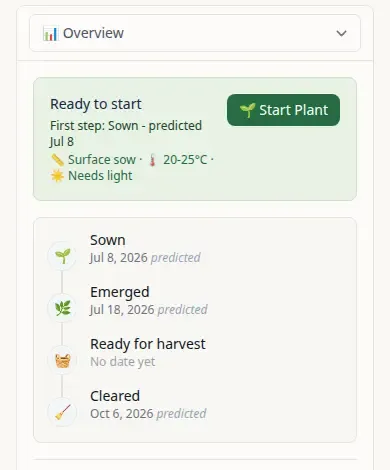
Every plant goes through stages: Sown, Germinated, Hardened Off, Growing in Place, Ready for Harvest. When you add a plant, Leaftide predicts when each stage should happen based on your location and frost dates. You just record when each one actually happens, and predictions get more accurate over time.
More about stages
Not every plant goes through every stage. A direct-sown lettuce skips Potted Up and Hardened Off. A tomato started indoors will see the full sequence. Leaftide figures out which stages apply based on your starting method.
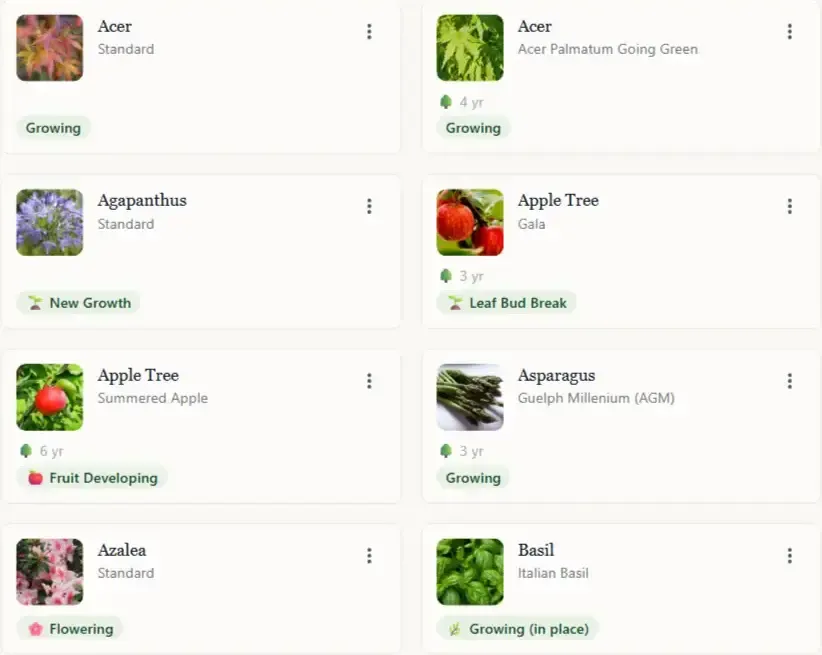
Permanent plants (trees, shrubs, perennials) have their own yearly stages like Bud Break, Flowering, Fruiting, and Leaf Fall, based on observations you log over time rather than a single grow cycle.
How do care tasks appear?
Leaftide comes with built-in care routines for each plant type. As your plant progresses through stages, relevant tasks appear automatically, like fertilising after transplanting or netting before fruiting. You can also create your own custom routines.
How routines and tasks connect
Routines generate tasks. Each routine is linked to a stage, so when your plant reaches that stage, the task appears on your dashboard. When you record "Germinated", any routine triggered by germination creates its task automatically.
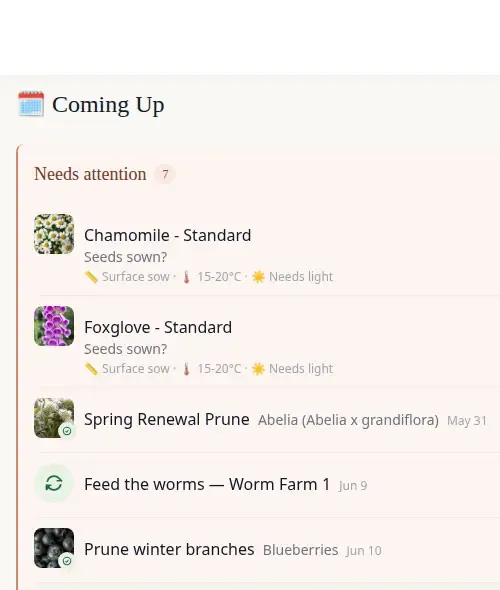
Both predictions and care tasks show up together on your Coming Up dashboard:
What is the Planning Board?
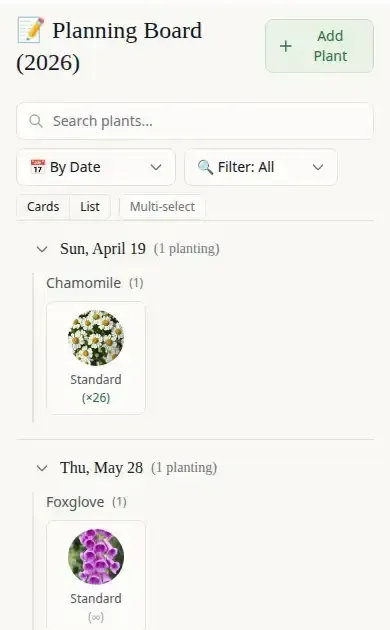
When you add a seasonal plant, Leaftide sets up dates and a starting method based on your schedule. The Planning Board shows all your plants that haven't been started yet. It's where you can adjust dates, change the starting method, or remove a plant before you commit to growing it. Once you record your first stage, the plant moves to Active.
Common questions
How do I stop getting reminders for tasks I don't care about?
You can dismiss a care routine from the plant's Care tab, or directly from the task card on your Coming Up dashboard. Once dismissed, it won't come back for that plant type. If you change your mind later, you can re-adopt it from the Recommendations section.
How do I edit or delete a custom variety?
Go to Settings → My Garden → Custom Varieties. You'll see all the varieties you've created. Use the pencil icon to edit or the bin icon to delete.
What is "Reference Only" mode?
When adding a permanent plant, you can choose Reference Only mode. This keeps the plant in your garden as a catalog entry with no stage tracking, no predictions, and no tasks. You can also switch an existing plant to Reference Only from its settings anytime. Useful for plants you just want to remember you have, without actively tracking them.
How do I see more options when adding a plant?
When you're in the plant starter wizard, look for the option to switch to Advanced mode. This unlocks extra options: choose your starting method, set exact dates, plan backwards from a plant-out date, and create a prep checklist. Once you switch, it stays as your default for future plants.
How do I share my garden with someone?
In the plot designer, switch to View Mode and use the Share button. This creates a public link anyone can view without an account. You can also tick the option to show your garden on the Leaftide community page, which helps other gardeners find inspiration.
I've added my plants. What should I pay attention to?
Your dashboard's Coming Up section is where the action happens. It shows predictions (what Leaftide thinks should happen next, like germination or harvest) and care tasks (things to do, like fertilising or netting). When a prediction appears, check your garden. If it happened, tap Confirm. If it hasn't happened yet, tap Not Yet. Both actions make future predictions more accurate.
Care tasks appear automatically as your plant progresses through stages. If one doesn't apply to you, dismiss it and it won't come back. That's the daily loop: check Coming Up, confirm what you see, dismiss what doesn't apply.
What can I do on the free plan?
Free: up to 15 seasonal plantings, 30 permanent plants, 5 custom varieties, and 10 pots. Pro (£5/month) unlocks unlimited plants, custom pot types, custom fertilisers and suppliers, soil mixes, and daily email digests. Everything else (predictions, care tasks, the plot designer, companion planting, sharing) works on free.
Why aren't my care tasks showing up?
A routine generates tasks when three conditions are met: you have an active plant of that type, the current month is within the routine's season window, and (if set) the plant is in the right lifecycle stage. If any condition isn't met, no task appears yet. It will once the conditions align.
Are care tasks recurring?
Depends on the routine's frequency. Some repeat on a schedule (daily, weekly, monthly) and keep generating as you complete them. Others are one-time, triggered once by a stage change (like "net fruit trees when fruiting starts"). The system runs automatically.
What are seasonal care tasks?
A seasonal routine generates one task per year, with a time window instead of a fixed due date. For example, "Winter prune apple trees (Dec to Feb)" appears once winter starts and stays available until the window closes. You do it when the moment is right within that window. Once completed, it won't reappear until next year.
I dismissed a routine. Can I get it back?
Yes. Go to Care Routines, then Recommendations. Dismissed routines appear in a "Previously dismissed" section. Re-adopt from there and tasks will start generating again.
How do predictions get more accurate?
For permanent plants (trees, shrubs, perennials), logging actual event dates feeds the learning engine. Predictions improve across years as more data accumulates. For seasonal plants, predictions come from climate data and don't learn from past seasons. Tapping "Not yet" on a prediction (a check-in) postpones it by 7 days.
Why are my predictions vague or missing?
Predictions use growing degree days, frost windows, and local temperature data based on your garden's coordinates. If something looks off, check Settings, then Garden, then Location & Climate. You can reset frost dates from historical data there, which recalculates your schedule. Predictions also improve over time as you log actual events (especially for permanent plants).
What's the difference between Lifecycle Tracking and Reference Only?
Lifecycle Tracking gives you predictions, check-ins, care tasks, and learns from your observations over time. Reference Only keeps the plant in your garden as a catalog entry with no predictions, no tasks, no tracking. Useful for plants you want to remember you have without actively managing. Switch between them anytime from the plant's settings.
What happens if I log a failure event?
If you log "Flowering failed" or "Fruiting failed", downstream predictions (fruit set, harvest) are cancelled for that year. The plant transitions to a "Growing" state, still healthy, just not producing this season. This doesn't affect future years' predictions.
How do perennials appear in my new season?
Permanent plants persist across years automatically. When a new yearly plan is created, each permanent plant gets a fresh annual cycle with new predictions. You don't need to re-add them. Plants you've removed or cleared won't carry over.
What are Garden Systems?
Non-plant infrastructure you maintain: compost bin, wormery, rainwater harvester, cold frame. They get their own event timeline and care tasks, managed separately from plant care. Add them from Settings, then Garden Systems.